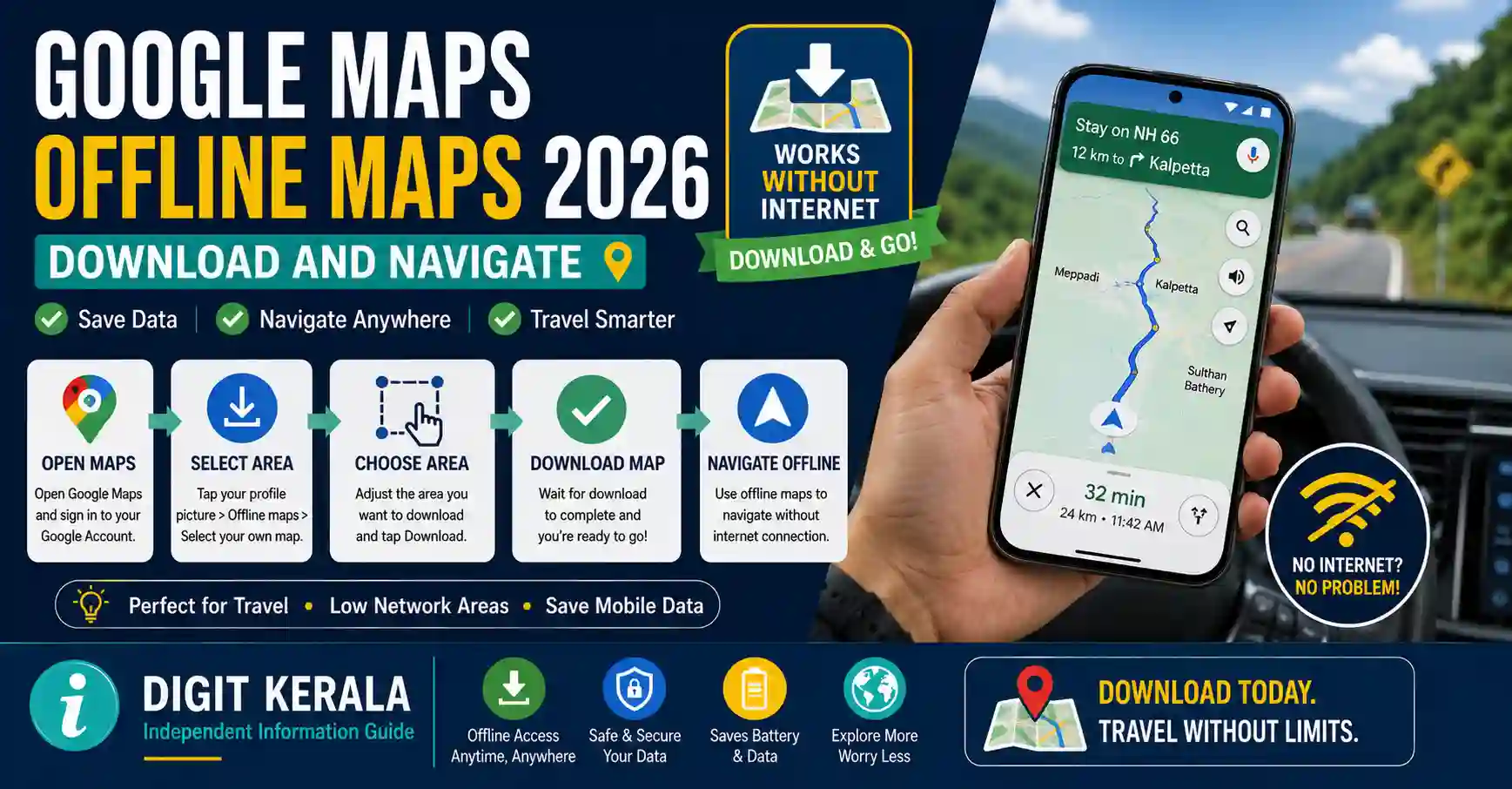
Google Maps offline maps can help users view an area and obtain eligible driving directions when mobile data or Wi-Fi is unavailable.
Downloading an offline map before travelling can be useful in places with weak network coverage, during temporary internet interruptions and when the user wants to reduce mobile-data consumption.
Offline Maps does not provide every feature available with an active internet connection. The required map area must be downloaded in advance, and the complete driving route should remain within the downloaded area.
This guide explains how to download, use, update, rename and delete Google Maps offline maps on Android phones, iPhones and iPads.
Important: Offline navigation should be treated as a travel aid. Always follow current road signs, traffic regulations, official safety instructions and local authority directions.
What Is a Google Maps Offline Map?
An offline map is a selected geographical area saved within the Google Maps application on a phone or tablet.
After downloading an area, the user can access eligible map information without a continuous internet connection.
Offline maps can be useful for:
- Driving through locations with weak mobile coverage.
- Travelling in a different state or country.
- Reducing mobile-data use.
- Preparing for temporary network outages.
- Finding an eligible destination within a downloaded region.
- Keeping a basic navigation option available during a journey.
Google notes in its official Offline Maps guide that offline-map downloads are unavailable in certain countries or regions because of factors such as contractual restrictions, language support or address formats.
What Is Required Before Downloading?
Before downloading an offline area, confirm the following:
- Google Maps is installed and updated.
- The phone or tablet has sufficient free storage.
- A stable Wi-Fi or mobile-data connection is available.
- Location services are enabled when required.
- The correct Google Account is being used.
- The complete travel area can be included in the selected map.
- The device has sufficient battery power.
Android users should be signed in to Google Maps when following the standard download procedure.
On an iPhone or iPad, Google states that the user should be connected to the internet and not using Google Maps Incognito mode while downloading an offline map.
Download the map before beginning the journey. Do not wait until the device has already lost network coverage.
How to Download an Offline Map on Android
To download a map by searching for a destination:
- Connect the Android phone or tablet to the internet.
- Open the official Google Maps application.
- Confirm that the correct Google Account is signed in.
- Search for a place, town or city.
- Open the place-information panel.
- Tap More when required.
- Select Download offline map.
- Adjust the displayed area.
- Review the estimated download size.
- Tap Download.
- Wait until the download is completed.
Keep Google Maps open or allow the application to complete the download in the background.
The exact location of the Download button may vary according to the selected place and application version.
Select a Custom Offline Area on Android
Users can manually choose an area instead of searching for a specific city.
Follow these steps:
- Open Google Maps.
- Tap the profile picture or account initial.
- Select Offline maps.
- Tap Select your own map.
- Move and zoom the map to cover the required area.
- Check the estimated storage requirement.
- Tap Download.
- Wait for the process to finish.
Include the starting point, destination and the roads between them.
If the journey crosses a large area, more than one offline map may be required. Ensure the selected areas overlap sufficiently so that there is no uncovered section along the route.
How to Download an Offline Map on iPhone or iPad
To download an offline area on an iOS or iPadOS device:
- Connect the iPhone or iPad to the internet.
- Open the latest version of Google Maps.
- Confirm that Incognito mode is not active.
- Search for a destination.
- Tap the place name or address at the bottom.
- Select More.
- Tap Download offline map.
- Adjust the map area.
- Tap Download.
- Wait until the download is completed.
To select a custom area:
- Open Google Maps.
- Tap the profile picture or account initial.
- Select Offline maps.
- Tap Select your own map.
- Move and resize the selected area.
- Tap Download.
The downloaded map is stored within the Google Maps application on that device.
How to Use Google Maps Without Internet
After downloading the required area:
- Open Google Maps.
- Search for a destination located within the downloaded map.
- Tap Directions.
- Select an available driving route.
- Tap Start.
- Follow the displayed navigation carefully.
Google states that an offline map can guide the user when the internet is slow or unavailable, provided the entire route is within the downloaded area.
The phone may still use GPS or other device-location methods to estimate the current location. GPS location can work without mobile data, but factors such as buildings, tunnels, weather, device settings and hardware can affect accuracy.
Keep the device’s Location setting enabled when navigation requires it.
Features Available and Unavailable Offline
Offline Google Maps does not operate exactly like the online service.
Generally Available Offline
Depending on the area and device, offline use may provide:
- Viewing the downloaded map.
- Searching for certain saved map information.
- Eligible driving directions.
- Turn-by-turn driving navigation within the downloaded area.
- Basic location display.
- Previously downloaded place and road information.
Unavailable or Limited Offline
Google states that the following directions are unavailable while fully offline:
- Public-transit directions.
- Walking directions.
- Bicycling directions.
Offline driving also does not provide live:
- Traffic information.
- Traffic-delay updates.
- Alternate routes based on current conditions.
- Road-incident reports.
- Real-time business information.
- Certain live opening-hour updates.
- Live public-transport information.
Some places, road changes or business details may be missing if the downloaded map has not been updated.
Why the Complete Route Must Be Downloaded
Downloading only the destination area may not be sufficient.
For example, if a person downloads a map around Kochi but begins the journey from another district outside the saved area, offline navigation may not calculate or display the complete route.
Before travelling:
- Check the starting location.
- Check the destination.
- Review the expected route.
- Include possible connecting roads.
- Download additional areas when required.
- Test the destination search after disconnecting from the internet.
A route can also change because of a missed turn, road closure or navigation recalculation. Downloading a slightly wider area can be more practical than saving only a narrow path.
How Much Storage Does an Offline Map Use?
The required storage depends on factors such as:
- Size of the selected area.
- Road and place-information density.
- Number of downloaded maps.
- Available map detail.
- Application version.
- Future offline-map updates.
Google Maps displays an estimated download size before the user confirms the map.
To reduce storage use:
- Select only the area needed.
- Avoid downloading unnecessarily large regions.
- Delete maps after the journey when they are no longer required.
- Review old or duplicate offline maps.
- Store eligible Android maps on a compatible SD card.
Do not remove an offline map during a journey unless another reliable navigation method is available.
Save Offline Maps to an SD Card on Android
By default, Android offline maps are generally stored in the device’s internal storage.
Google Maps may allow them to be stored on an SD card.
The official requirements include:
- Android 6.0 or later.
- An inserted and supported SD card.
- The SD card configured as portable storage.
To change the storage preference:
- Insert the SD card.
- Open Google Maps.
- Tap the profile picture or initial.
- Select Offline maps.
- Open Settings.
- Select Storage preferences.
- Choose SD card.
- Confirm the change.
- Download the required maps again when instructed.
Google states that changing the storage location requires the offline map to be downloaded again.
Do not remove or format the SD card while depending on a map stored on it.
Control Download Preferences
Android users may be able to choose whether offline maps are downloaded through Wi-Fi or mobile data.
To review the preference:
- Open Google Maps.
- Tap the profile picture or initial.
- Select Settings.
- Open Offline maps.
- Select Download preferences.
- Choose the preferred network option.
Using Wi-Fi can help avoid unexpected mobile-data use, especially when downloading a large area.
The available settings and wording can vary by device and Google Maps version.
Offline Maps Must Be Updated
Downloaded maps are not permanent, unchanged copies.
Roads, locations, businesses and other map information can change. Google therefore requires downloaded offline maps to be updated before they expire.
According to Google:
- Google Maps attempts to update an offline area automatically when it will expire in 15 days or less.
- Automatic updating generally requires an available Wi-Fi connection.
- A map can be updated manually if the automatic update does not complete.
Do not assume that an old downloaded map still contains current road information.
How to Update an Offline Map Manually
To update an offline map:
- Connect the device to the internet.
- Open Google Maps.
- Tap the profile picture or account initial.
- Select Offline maps.
- Choose the expired or expiring map.
- Tap Update.
- Wait for the update to finish.
Google Maps may also display an offline-map update notification. Opening the notification can provide an option to update the affected area.
Check all required maps before a long trip.
Turn On Automatic Offline-Map Updates
To enable automatic updates:
- Open Google Maps.
- Tap the profile picture or initial.
- Select Offline maps.
- Open Settings.
- Turn on Auto-update offline maps.
Automatic updates can consume data and storage. Review the download preference if updates should occur only through Wi-Fi.
Even when automatic updates are enabled, verify the map status before travelling. An update may not finish if the device lacks storage, power or an internet connection.
Rename an Offline Map
Renaming downloaded areas makes them easier to identify.
For example, maps can be named:
- Kochi Trip.
- Bengaluru Route.
- Kerala North.
- Airport Journey.
- Weekend Travel.
To rename an area:
- Open Google Maps.
- Tap the profile picture or initial.
- Select Offline maps.
- Choose the downloaded area.
- Tap Edit.
- Enter a clear map name.
- Tap Save.
Use a name that indicates the location or purpose rather than leaving several maps with similar default names.
Delete an Offline Map
Offline maps can be removed when they are no longer required.
To delete one:
- Open Google Maps.
- Tap the profile picture or initial.
- Select Offline maps.
- Choose the map to remove.
- Tap Delete.
- Confirm the action.
Deleting an offline map removes the downloaded area from the device and frees the storage used by it.
It does not delete Google Maps itself or the user’s Google Account.
The map can be downloaded again later when an internet connection is available.
Recommended Maps and Upcoming Trips
Google Maps may display recommended offline maps based on upcoming places or trips associated with services such as Gmail or Google Travel.
These suggestions may appear under Recommended maps.
Before downloading a recommendation:
- Confirm that the suggested location is correct.
- Review the map area.
- Check the download size.
- Include all necessary roads.
- Avoid downloading a map for an outdated or cancelled trip.
The available recommendations depend on the account, settings and application version.
Difference Between Downloading a Map and Saving a Place
Downloading an offline map and saving a place are different actions.
Downloading an Offline Map
This stores a geographical area on the device for eligible offline use.
Saving a Place
This adds a place to a Google Maps list, such as Favourites or Want to go.
Saving a destination does not automatically download the surrounding map. A saved place may still require internet access if its geographical area was not downloaded.
Before a journey, confirm that the area appears under Offline maps, not only in a saved-place list.
Google Maps Go Limitation
Google Maps Go is a lighter version intended for certain devices and connections.
Google’s official Maps Go guide states that Maps Go does not support downloading areas and navigating offline.
Users requiring offline maps should use the standard Google Maps application on a compatible device.
Download the application only through Google Play, Apple’s App Store or another official device channel.
Common Offline Maps Problems
Download Option Is Missing
The option may be unavailable because:
- Offline maps are restricted in the selected country or region.
- The device is not connected to the internet.
- The Maps application requires an update.
- Incognito mode is active on an iPhone or iPad.
- The account is restricted by an organisation.
- The selected place does not support offline downloading.
- The user is using Google Maps Go.
Try selecting a custom area through Profile picture → Offline maps → Select your own map.
Map Download Does Not Complete
Check:
- Internet connection.
- Available device storage.
- Battery level.
- Background-data restrictions.
- Google Maps permissions.
- SD-card condition on Android.
- Whether another large download is active.
Retry through a stable Wi-Fi connection.
Destination Cannot Be Found Offline
The destination may be outside the downloaded area, or the required information may not be available in the saved map.
Reconnect to the internet, expand the selected area and download it again.
Offline Driving Route Does Not Start
Confirm that:
- Both the starting point and destination are inside the downloaded area.
- Location is enabled.
- Driving mode is selected.
- The map has not expired.
- The entire route is covered.
- Google Maps has access to the device’s location.
Walking, cycling and public-transit directions are not available while fully offline.
Downloaded Map Has Disappeared
The map may have expired, been deleted, become unavailable after an application reset or been stored on an SD card that is no longer accessible.
Open Offline maps and download the area again.
Map Shows Old Road Information
Connect to the internet and update the offline map.
Continue to follow actual road signs and official restrictions even after updating. Digital maps may not immediately reflect every temporary closure or traffic change.
Travel Safety Tips
Offline navigation should not be the only preparation for an important journey.
Follow these precautions:
- Download the map before departure.
- Update it through a reliable internet connection.
- Include the entire route and nearby areas.
- Charge the phone fully.
- Carry a power bank when appropriate.
- Keep the device securely mounted while driving.
- Do not hold or operate the phone while driving.
- Follow road signs and traffic laws.
- Verify temporary road restrictions.
- Keep emergency contact information separately.
- Tell a trusted person about remote travel plans.
- Carry a written address or basic route information.
- Avoid entering unsafe roads solely because the application suggests them.
Google Maps directions may contain errors. When information on the road conflicts with the application, follow applicable laws, official signs and instructions from authorised personnel.
Privacy and Security Tips
Offline maps contain information about areas selected by the user.
For safer use:
- Protect the phone with a strong screen lock.
- Keep Google Maps updated.
- Use only the official Google Maps application.
- Avoid modified or unofficial APK files.
- Review Google Account security regularly.
- Sign out before lending an unlocked device.
- Delete travel maps that are no longer needed.
- Do not share screenshots showing private home or workplace details unnecessarily.
- Review application location permissions.
- Avoid entering Google login information on unknown websites.
No website can legally provide a “premium unlocked” or modified Google Maps application with guaranteed extra features.
Frequently Asked Questions
Can Google Maps work without mobile data?
Yes. A previously downloaded area can support eligible offline use when the entire required route is within that area.
Can I download all of India as one offline map?
The selectable area and download limits depend on Google Maps and available device storage. Large journeys may require several separate offline maps.
Do offline maps provide walking directions?
No. Google states that walking, cycling and public-transit directions are unavailable when fully offline.
Is live traffic available offline?
No. An active internet connection is required for current traffic information and traffic-based alternate routes.
Can I use offline maps on an iPhone?
Yes. Google Maps supports downloading eligible offline areas on an iPhone or iPad. The device must be online during the download, and Incognito mode should not be active.
Do offline maps expire?
Yes. Downloaded maps must be updated before they expire. Google Maps may try to update them automatically when connected to Wi-Fi.
Can offline maps be stored on an SD card?
Supported Android devices may allow offline maps to be stored on an SD card configured as portable storage. This option is not available in the same way on an iPhone.
Does saving a destination download its map?
No. Saving a place to a list and downloading an offline area are separate actions.
Can Google Maps Go download offline maps?
No. Google states that Google Maps Go does not support downloading areas and navigating offline.
Does offline navigation always show the correct route?
No navigation service can guarantee that every route is accurate or current. Follow road signs, local regulations, closures and official instructions.
Official References
- Google Maps Offline Maps – Android
- Google Maps Offline Maps – iPhone and iPad
- Google Maps Directions and Routes
- Google Maps Location Accuracy
- Google Maps Go Features and Limitations
- Official Google Maps Help Centre
Last reviewed: August 30, 2026.
Disclaimer: DIGIT KERALA is an independent information website and is not affiliated with Google, Google Maps, Android, Apple, any device manufacturer or government organisation. This article provides general information only. Map availability, download limits, road data, navigation features and menu locations can change. Google Maps directions may contain errors or outdated information. Always follow applicable laws, current road signs and official safety instructions.