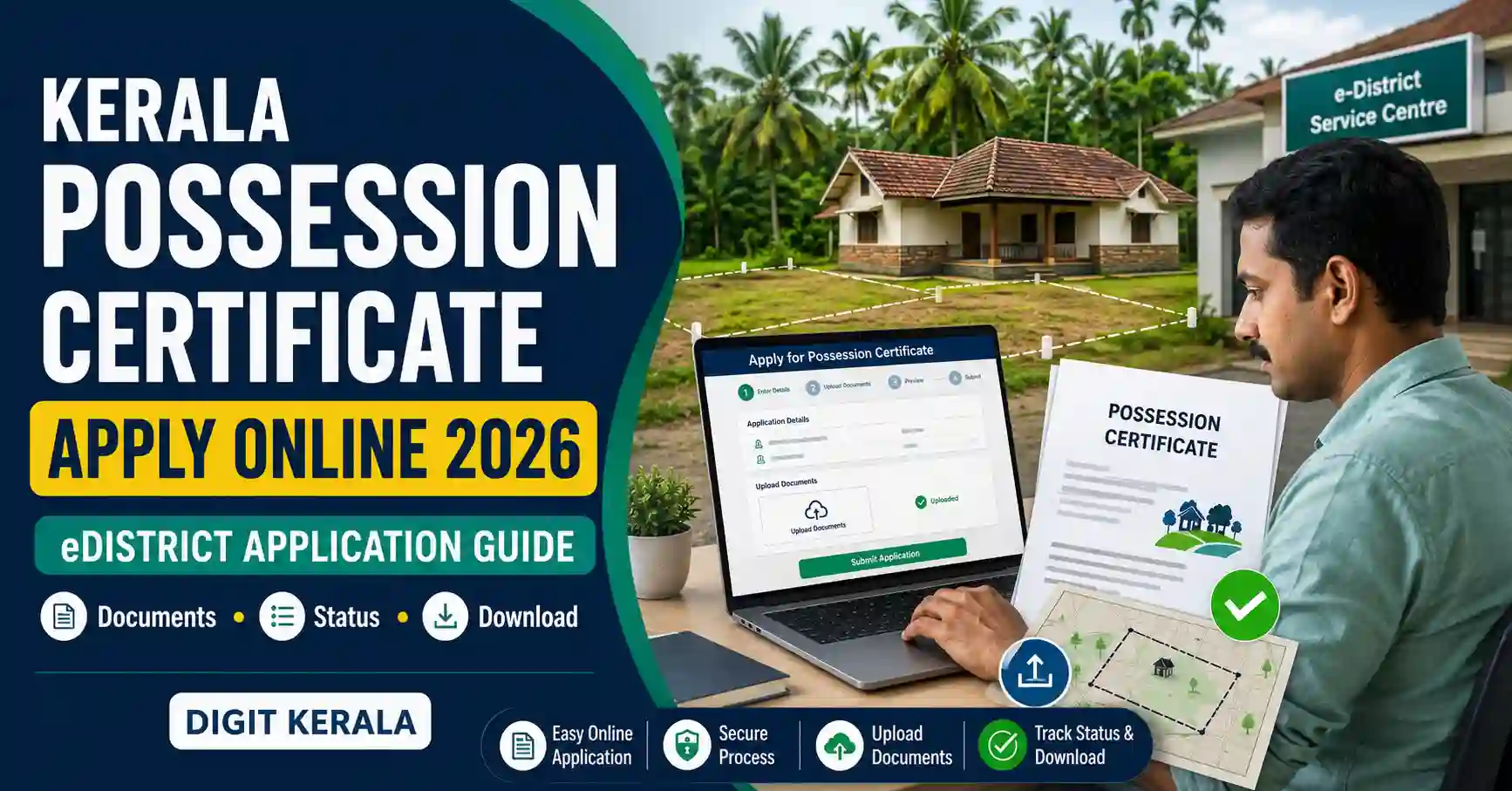
Property holders in Kerala can apply for a Possession Certificate online through the Government of Kerala eDistrict portal. The certificate records important information about a property and the person shown as possessing it in the relevant Revenue records.
According to the Kerala Department of Land Revenue, a Possession Certificate may include the land’s survey number, block number, type, nature and ownership-related information available in the records.
This guide explains the Kerala Possession Certificate Online application process, required documents, processing time, status checking and certificate download.
Information verified on August 26, 2026: Documentary requirements, fees and portal procedures may change. Confirm the latest instructions through the official eDistrict portal or the relevant Revenue Office before applying.
What Is a Possession Certificate?
A Possession Certificate is a Revenue Department certificate showing that the property described in the certificate is recorded as being in the possession and enjoyment of the named person or persons.
The official certificate format may contain details such as:
- Name of the person or persons
- Parent’s name
- Address
- Taluk and village
- Old survey number
- Re-survey block
- Re-survey number
- Extent of land
- Thandapper number
- Classification of land
- Purpose for which the certificate was issued
- Date of issue
- Issuing office and approving authority
The certificate is issued based on the application, supporting documents, Revenue records and any required local enquiry.
What Is a Possession Certificate Used For?
The official Akshaya service information states that a Possession Certificate is issued for purposes connected with obtaining housing subsidy or a housing loan.
The authority requesting the certificate may specify its acceptable purpose, format and issue date. Applicants should check the lender’s or scheme’s requirements before applying.
A Possession Certificate should not automatically be used for unrelated purposes unless the organisation concerned accepts it.
Possession Certificate Is Not a Title Deed
A Possession Certificate should not be treated as a registered title deed or conclusive proof of legal ownership.
Documents and records associated with property ownership may include:
- Registered sale deed
- Pattayam
- Certificate of purchase
- Transfer of Registry or mutation record
- Encumbrance Certificate
- Land-tax receipt
- Survey and Revenue records
A Possession Certificate records possession details based on available records. It does not independently transfer ownership or resolve a property dispute.
For a title dispute, boundary dispute or inheritance issue, obtain advice from the relevant Revenue Office or a qualified legal professional.
Official Website
Use the official Kerala eDistrict portal:
https://edistrict.kerala.gov.in/
Applications may also be submitted with assistance through an authorised Akshaya Centre.
Before entering Aadhaar, property or payment information, check that the website address ends in kerala.gov.in.
Processing Time
The official eDistrict FAQ lists the time limit for issuing a Possession Certificate as seven working days.
Processing may take longer when:
- Property records require verification
- Survey details do not match
- Transfer of Registry is pending
- Supporting documents are incomplete
- Joint-possession details need clarification
- A local enquiry is necessary
- The applicant does not respond to a query
- The portal or office experiences a technical delay
Apply early if the certificate is required for a housing-loan or subsidy deadline.
Possession Certificate Validity
The eDistrict FAQ categorises the validity of a Possession Certificate as special purpose. The Akshaya service page also states that validity is for a specified minimum period.
Therefore, the receiving bank, department or scheme may require a recently issued certificate. Check its conditions before using an older certificate.
Documents Required
The official eDistrict FAQ lists the following supporting documents for a Possession Certificate:
- Aadhaar card
- Affidavit
- Building-tax receipt
- Election ID card
- Encumbrance Certificate
- Land-tax receipt
- Pattayam
- Registered sale deed or Certificate of Purchase
The official Akshaya service page particularly lists:
- Aadhaar card
- Land-tax receipt
- Proof of property ownership
- Encumbrance Certificate
- Voter ID
Not every document will apply to every property. Upload the records relevant to the applicant and property.
Property Details to Keep Ready
Before starting the Kerala Possession Certificate Online application, keep the following information available:
- District
- Taluk
- Village
- Local body
- Thandapper number
- Old survey number
- Re-survey block number
- Re-survey and subdivision number
- Extent of land
- Classification of land
- Owner or possessor’s name
- Date and number of the ownership document
- Latest land-tax receipt
- Encumbrance Certificate details
- Purpose of the certificate
A previous land-tax receipt, deed or Pattayam can help identify these details.
Do not guess a survey, subdivision or Thandapper number. An incorrect number may connect the application to a different property.
Check the Records Before Applying
Compare the applicant’s documents before starting:
- Check whether the name on Aadhaar matches the property records.
- Compare the survey number on the deed and tax receipt.
- Confirm the correct subdivision number.
- Check the recorded land extent.
- Verify the village and taluk.
- Confirm that mutation or Transfer of Registry has been completed after a purchase or inheritance.
- Check whether the latest land tax has been paid.
If there is a significant mismatch, contact the Village Office before submitting the application.
How to Create an eDistrict Account
Step 1: Visit the Official Portal
Open:
https://edistrict.kerala.gov.in/
Select the account-registration option if you are a new user.
Step 2: Complete Aadhaar Authentication
Enter the applicant’s name, date of birth and Aadhaar number accurately.
The eDistrict FAQ states that these details are checked against the Aadhaar database. The spelling, position of initials and date of birth should match the Aadhaar record.
Step 3: Verify Contact Details
Complete mobile-number and email verification using the respective OTPs.
Do not share the OTP, eDistrict password or complete property documents with an unknown person.
Step 4: Save Your Account Details
Complete registration and securely save the login name and password.
If an account already exists, use the account-recovery options instead of creating another account.
Complete One Time Registration
After signing in, open One Time Registration and create the applicant’s profile.
Enter the personal and address information requested. The portal provides a Register Number after successful completion.
Select this Register Number when applying for the certificate.
One eDistrict account may contain profiles for different family members. Ensure that the person shown in the selected profile is connected with the property.
How to Apply for Kerala Possession Certificate Online
Step 1: Sign In
Open the official eDistrict portal and sign in.
Step 2: Choose the Correct Applicant
Open the certificate-application section and select the applicant’s Register Number.
Verify the applicant’s name, parent’s name and address.
Step 3: Select Possession Certificate
Choose Possession Certificate from the Revenue certificate list.
Do not accidentally select:
- Possession and Non-Attachment Certificate
- Location Certificate
- Valuation Certificate
- Solvency Certificate
These certificates have different purposes and supporting requirements.
Step 4: Select the Purpose
Enter the exact purpose for which the certificate is required, such as a housing-loan or housing-subsidy application.
Use the wording specified by the receiving bank, department or scheme where applicable.
Step 5: Enter the Property Details
Enter the requested property information carefully. This may include:
- District, taluk and village
- Survey and subdivision number
- Re-survey block
- Thandapper number
- Extent of land
- Classification of land
- Ownership-document details
- Land-tax information
Enter the details exactly as recorded in the official documents.
Step 6: Upload the Documents
Upload clear copies of the applicable supporting documents.
Ensure that:
- Every page is readable
- Survey numbers are visible
- Names are not cut off
- The complete relevant section of the deed is included
- Documents are correctly oriented
- Unrelated pages are avoided
- Files meet the portal’s size requirements
The eDistrict FAQ states that additional supporting documents may be uploaded through:
One Time Registration → Enclosure
Step 7: Enter Joint-Possession Details
If the property has multiple possessors, enter all required names according to the instructions displayed by eDistrict.
The eDistrict FAQ advises users to include all possessors in the appropriate applicant-name field for joint-property cases. Aadhaar authentication may require special handling when multiple names are entered.
If you are uncertain, confirm the correct method with an Akshaya Centre or Revenue Office instead of submitting an incomplete application.
Step 8: Review the Application
Before final submission, verify:
- Applicant’s name
- Property owner or possessor’s name
- Village and taluk
- Survey and subdivision number
- Re-survey block
- Thandapper number
- Extent of land
- Purpose of the certificate
- Uploaded documents
- Mobile number and email address
Correct errors before making the payment.
Step 9: Pay the Applicable Charges
Pay the charges displayed by the portal.
Additional service, scanning or printing charges may apply at an Akshaya Centre. Fees can change, so rely on the amount shown during the current application.
Save the payment reference and acknowledgement.
Step 10: Note the Application Number
After successful submission, record the application number. Download the acknowledgement if the option is available.
How to Check Application Status
Sign in to eDistrict and open Transaction History or the Status menu.
Select the relevant date and check:
- Application number
- Service name
- Submission status
- Processing stage
- Approval or rejection
- Certificate availability
SMS updates may be sent to the registered mobile number during processing.
Payment Made but Application Not Showing
If the payment is completed but the application is not visible:
- Do not pay again immediately.
- Open Transaction History.
- Select the payment date.
- Check for the application number.
- Save the bank transaction reference.
- Take a screenshot of the payment or error message.
- Contact eDistrict support if no application entry appears.
The official eDistrict FAQ states that a successfully submitted application should appear in Transaction History under Application Service Details.
How to Download the Certificate
After approval:
- Sign in to the eDistrict account.
- Open Transaction History or the certificate section.
- Select the approved application.
- Click the download option.
- Save the digitally signed certificate as a PDF.
- Keep an additional secure copy.
Before submitting it to a bank or department, check that all property details are correct.
Details to Verify on the Certificate
Check the downloaded certificate for:
- Applicant’s full name
- Parent’s name
- Address
- Village and taluk
- Old survey number
- Re-survey block
- Re-survey and subdivision number
- Land extent
- Thandapper number
- Classification of land
- Purpose
- Issue date
- Digital signature
If a detail is wrong, contact the issuing Revenue Office. Do not edit the downloaded certificate yourself.
How to Verify the Certificate Online
Use the official eDistrict certificate-verification page:
https://edistrict.kerala.gov.in/openSearch.do?openStat=openSearch
Enter the certificate number and security code shown on the page.
The verification result should correspond with the details on the downloaded certificate.
Applying Through an Akshaya Centre
If you cannot complete the online process, visit an authorised Akshaya Centre with the relevant documents.
Ask the operator to confirm:
- Applicant profile
- Survey details
- Thandapper number
- Land extent
- Purpose selected
- Documents uploaded
- Total amount charged
- Application number
Collect the application receipt. Do not leave original property documents at the centre unless an official procedure specifically requires it.
Common Reasons for Delay or Rejection
A Possession Certificate application may be delayed or rejected due to:
- Incorrect survey or subdivision number
- Name mismatch between Aadhaar and land records
- Transfer of Registry not completed
- Outdated land-tax information
- Unclear ownership document
- Missing Encumbrance Certificate
- Wrong property selected
- Joint owners not properly included
- Land extent mismatch
- Incomplete affidavit
- Failure to respond to clarification
- Property dispute or record discrepancy
Check the reason displayed in the portal before submitting a new application.
Frequently Asked Questions
Can I apply for a Kerala Possession Certificate online?
Yes. Applications can be submitted through the official Kerala eDistrict portal. Applicants may also obtain assistance from an authorised Akshaya Centre.
How long does it take?
The official eDistrict FAQ lists a time limit of seven working days. Verification or incomplete records can cause additional delay.
Is a Possession Certificate proof of ownership?
It records possession and property details based on Revenue records. It should not be treated as a substitute for a registered title deed or as conclusive proof in a legal ownership dispute.
What is its validity?
The eDistrict FAQ lists it as a special-purpose certificate. The bank, scheme or department receiving it may prescribe how recently it must have been issued.
Is a land-tax receipt required?
A land-tax receipt is included in the official supporting-document list. Use the receipt relating to the correct property.
Is an Encumbrance Certificate required?
The Encumbrance Certificate is included among the documents listed by eDistrict and Akshaya. The exact requirement may depend on the purpose and property.
Can I apply for jointly owned property?
Joint-property applications are possible, but all relevant possessor details must be entered correctly. Follow the portal’s current instructions or obtain assistance from the Revenue Office.
Is a Possession Certificate the same as an Encumbrance Certificate?
No. A Possession Certificate records possession-related property details. An Encumbrance Certificate reports registered transactions or encumbrances for the searched period.
Can I download it after approval?
Yes. The approved digitally signed certificate can normally be downloaded through the eDistrict account.
Official References
Kerala eDistrict portal:
https://edistrict.kerala.gov.in/
Official eDistrict FAQ:
https://edistrict.kerala.gov.in/generalService.htm?event=faq
Possession Certificate information from Akshaya:
https://akshaya.kerala.gov.in/services/16/possession-certificate
Department of Land Revenue certificate information:
https://clr.kerala.gov.in/eng/index.php/services/certificates
Certificate verification:
https://edistrict.kerala.gov.in/openSearch.do?openStat=openSearch
Disclaimer
This article is provided for general informational purposes and is not an official government notice, legal opinion or guarantee of approval. Documents, fees, time limits, validity and application procedures may change. Verify the latest requirements through Kerala eDistrict, the relevant Revenue Office, the receiving institution or an authorised Akshaya Centre.