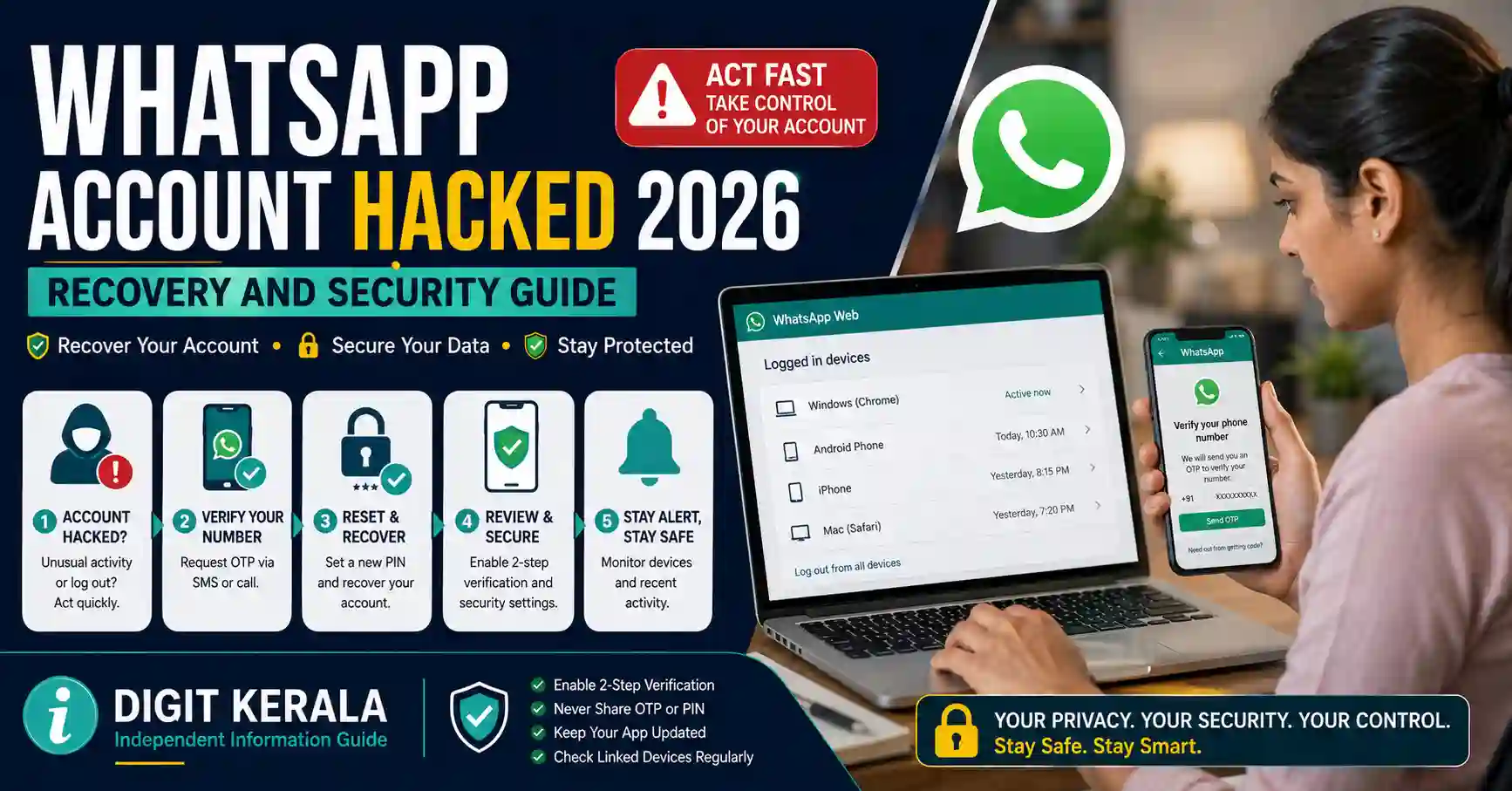
A WhatsApp account may be compromised when another person obtains the registration code, controls the registered SIM, links an unauthorised device or gains access to an unlocked phone.
The attacker may then impersonate the account owner, contact family members, request money, change security settings or attempt to collect additional personal information.
WhatsApp provides an official account-recovery process that allows the registered user to verify the phone number again. Entering the new registration code normally logs the unauthorised user out of the primary account.
This guide explains how to recover a hacked WhatsApp account, remove unknown linked devices, protect a lost SIM, report financial fraud and activate the latest WhatsApp security features.
Important: Never pay an agent who promises to recover a WhatsApp account. Use only the official application, WhatsApp Help Center and authorised cybercrime-reporting channels.
Signs That a WhatsApp Account May Be Compromised
Possible warning signs include:
- WhatsApp unexpectedly logs you out.
- A message says the number was registered on another device.
- Contacts receive messages you did not send.
- Unknown linked devices appear in the account.
- Profile name, photograph or information changes.
- Unfamiliar groups are created or joined.
- Messages are marked as read without your action.
- You receive an unrequested registration code.
- Someone asks you for the WhatsApp verification code.
- A two-step verification password has been changed.
- Your SIM suddenly stops receiving calls and messages.
- Friends report requests for money from your account.
A single technical issue does not always mean the account has been hacked. Confirm the account status and linked devices before reaching a conclusion.
How WhatsApp Accounts Are Commonly Compromised
Verification-Code Scam
A fraudster attempts to register the victim’s number and asks for the six-digit code sent by SMS or phone call.
The fraudster may pretend that the code was sent by mistake or claim to be a friend, employee or support agent.
QR-Code or Linked-Device Scam
The victim is persuaded to scan a QR code or link a device under the false claim that it is required for verification, voting, an offer or customer support.
The attacker may then read future messages through the linked session.
SIM Swap or Stolen SIM
A fraudster obtains control of the registered mobile number through a stolen SIM or fraudulent SIM replacement.
Unlocked or Shared Phone
A person with physical access to an unlocked phone may view messages, link another device or change account settings.
Malicious Application or Remote-Access Scam
A user may be persuaded to install an unofficial WhatsApp application, screen-sharing application or remote-access tool.
The attacker may then observe verification codes or control the device.
Fake WhatsApp Support
Fraudsters may claim to be WhatsApp or Meta support and request a registration code, password, PIN, payment or screen-sharing access.
Official support does not require users to reveal private verification credentials to an unknown caller or chat account.
First Step: Register the Number Again
If you still control the registered mobile number:
- Open the official WhatsApp application.
- Tap Log back in or continue to number verification.
- Enter the phone number in the correct international format.
- Request the six-digit registration code.
- Enter the code received by SMS or phone call.
- Complete the security verification displayed by the application.
According to the official WhatsApp compromised-account guide, verifying the number again logs out the person currently using the account on another primary phone.
Never send the new registration code to another person.
What If Two-Step Verification Was Enabled by the Attacker?
After entering the registration code, WhatsApp may request a two-step verification PIN or password that you do not recognise.
Follow the recovery options displayed in the official application.
Depending on the account’s security configuration, options may include:
- Verification through a registered email address.
- Password or PIN reset.
- Waiting for the security period displayed by WhatsApp.
- Verifying through an existing trusted device.
- Using a previously created passkey.
WhatsApp’s account-recovery guidance states that when the required two-step PIN is unavailable, the user may need to wait seven days before completing certain recovery steps.
Do not repeatedly guess the password or follow third-party bypass instructions.
WhatsApp may revise the available verification methods. Use the options shown in the current official application.
Check and Remove Unknown Linked Devices
Recovering the primary account does not mean every linked-device session should be trusted.
To check on Android:
- Open WhatsApp.
- Tap the three-dot menu.
- Select Linked devices.
- Review every listed browser, computer, tablet or phone.
- Tap an unfamiliar device.
- Select Log out.
On iPhone:
- Open WhatsApp.
- Open Settings.
- Select Linked Devices.
- Review the list.
- Select an unknown device.
- Tap Log Out.
Repeat this for every device you do not recognise.
WhatsApp’s linked-device guidance recommends regularly reviewing connected devices and logging out unfamiliar sessions.
Do not identify a device only by its displayed location. Device names and approximate locations may not always be precise.
Secure the Registered SIM Card
Control of the mobile number is essential for recovering and protecting the WhatsApp account.
If the SIM is missing or suddenly inactive:
- Contact the telecom operator immediately.
- Ask whether a replacement SIM was issued.
- Block the missing or compromised SIM.
- Request a new SIM with the same number.
- Complete the operator’s identity verification.
- Register WhatsApp again using the replacement SIM.
- Review linked devices after access is restored.
The official WhatsApp lost-phone recovery guide advises users to contact their mobile provider, block the lost SIM and obtain a replacement with the same number.
If the phone itself has been lost or stolen, also use the official Sanchar Saathi CEIR service to request device blocking where eligible.
Blocking the SIM and blocking the handset are separate actions.
Contact WhatsApp Support
If normal recovery is unsuccessful, contact WhatsApp through an official channel.
From the application:
- Open Settings.
- Select Help or Help and feedback.
- Open Help Center.
- Select Contact Us.
- Describe the issue clearly.
- Provide the phone number in international format.
- Include relevant screenshots without exposing private codes.
Users without access to the application can use the official WhatsApp Contact page.
WhatsApp states that genuine support emails use addresses ending in @support.whatsapp.com.
Avoid:
- WhatsApp support phone numbers found in comments.
- Social-media accounts claiming to recover accounts.
- Individuals requesting remote access.
- Emails from unrelated domains.
- Paid “unban” or recovery services.
- People asking for the six-digit code.
Only WhatsApp can take official action on a WhatsApp account.
Warn Your Contacts
After recovering the account, inform contacts that it was compromised.
Tell them:
- Not to send money based on earlier messages.
- Not to share OTPs or personal information.
- Not to open suspicious links sent from the account.
- To verify unusual requests by calling you directly.
- To report any financial loss immediately.
- To delete suspicious files downloaded from the chat.
Post a temporary Status message or contact important groups directly.
A simple warning may be:
“My WhatsApp account was temporarily compromised. Please ignore recent requests for money, verification codes or personal information. Contact me directly before responding to any unusual message.”
Do not assume that deleting a message on your phone removes screenshots, downloaded files or information already seen by recipients.
Review Account Information
After access is restored, check:
- Profile photograph.
- Profile name.
- About information.
- Privacy settings.
- Linked devices.
- Two-step verification.
- Passkeys.
- Registered email address.
- Group memberships.
- Group administrator status.
- Blocked contacts.
- Recent chats and calls.
- Payment settings, when applicable.
If an unknown email address, passkey or trusted device appears, remove it through the official settings where possible.
Change Related Account Passwords
WhatsApp does not use a conventional account password for every registration step, but the compromised phone may provide access to other services.
Change the passwords of:
- Primary email account.
- Google or Apple account.
- Mobile-operator account.
- Banking applications.
- Social-media accounts.
- Cloud-backup account.
- Password manager.
- Device manufacturer account.
Use a different password for each important account.
If the attacker had access to the phone’s screen, assume that saved sessions and notification contents may have been visible.
Enable Two-Step Verification
Two-step verification adds another security layer beyond the SMS registration code.
The general path is:
- Open WhatsApp.
- Open Settings.
- Select Account.
- Select Two-step verification.
- Turn on the available security option.
- Create the requested PIN or password.
- Add a secure recovery email when offered.
- Confirm the information.
- Store the credential securely.
Do not use:
- Date of birth.
- Phone-number digits.
- Repeated numbers.
- A password used for another account.
- A credential shared with family or staff.
New Two-Step Verification Password in 2026
Meta announced an upgrade to WhatsApp two-step verification in August 2026.
The previous system commonly used a six-digit PIN. The updated feature supports a stronger password containing letters, numbers and supported special characters.
WhatsApp’s current guidance indicates that the password should contain at least:
- Eight characters.
- One letter.
- One number.
Because security features can roll out gradually, some users may temporarily continue to see a PIN-based interface.
Use the strongest option available in the updated official application. Do not disable an existing PIN while waiting for the password feature unless the official application specifically requires a change.
Add a Passkey
A passkey can allow WhatsApp to verify the user through the device’s security system, such as:
- Fingerprint.
- Face recognition.
- Device screen lock.
The general setup path is:
- Open WhatsApp.
- Open Settings.
- Select Account.
- Select Passkeys.
- Tap Create passkey.
- Complete the device verification.
- Confirm that the passkey has been registered.
Meta announced in August 2026 that WhatsApp can support more than one passkey for users operating across Android and iOS devices, where the feature is available.
Passkey availability depends on the operating system, application version, device security and rollout status.
A passkey should be created only on a personally controlled device.
Use Privacy Checkup
WhatsApp provides a Privacy Checkup facility that guides users through important privacy settings.
Open:
WhatsApp → Settings → Privacy → Privacy Checkup
Review:
- Who can contact you.
- Who can add you to groups.
- Who can see profile information.
- Call privacy.
- App-lock options.
- Message privacy.
- Blocked contacts.
- Advanced security options.
Privacy Checkup does not recover a compromised account, but it can reduce future unwanted contact and exposure.
Silence Unknown Callers
To reduce disturbance from suspicious calls:
- Open WhatsApp.
- Go to Settings.
- Select Privacy.
- Select Calls.
- Turn on Silence Unknown Callers.
Unknown calls may still appear in the call list even when they do not ring.
Do not call back an unfamiliar number merely because it appeared in the list.
Use Strict Account Settings When Available
WhatsApp introduced Strict Account Settings in 2026 as an optional, higher-security mode for people at risk of sophisticated attacks.
When available, it can be found through:
Settings → Privacy → Advanced
The feature may apply more restrictive settings, such as:
- Blocking certain attachments from unknown senders.
- Silencing unknown callers.
- Restricting account features that could increase exposure.
This option may be particularly useful for journalists, public figures, activists and people facing targeted attacks.
Feature availability may differ according to application version and rollout.
Never Share the Registration Code
WhatsApp may send a six-digit registration code when someone attempts to register the number.
Never share it with:
- Friends.
- Family members.
- Group administrators.
- Employers.
- Customer-care callers.
- Online sellers.
- Recruitment agents.
- People claiming the code was sent by mistake.
- Anyone claiming to represent WhatsApp.
WhatsApp advises users to ignore unrequested codes and never disclose them.
Receiving an unrequested code may mean that someone entered the number accidentally or is attempting to take over the account.
Be Careful With Device-Linking Requests
A QR code can link a browser or another device to the WhatsApp account.
Do not scan a QR code for claims such as:
- Online voting.
- Prize collection.
- Job registration.
- Account verification.
- Customer-support verification.
- Cashback activation.
- Group membership.
- Parcel tracking.
- Police verification.
Before scanning any WhatsApp QR code, confirm that you intentionally opened the official Linked Devices feature.
Review linked devices after using WhatsApp Web on a shared computer.
Avoid Unofficial WhatsApp Applications
Do not install:
- Modified WhatsApp APKs.
- Apps promising hidden features.
- Account-recovery tools.
- Applications claiming to reveal deleted messages.
- Unofficial WhatsApp Business versions.
- Remote-access applications requested by strangers.
Unofficial software may expose messages, contacts, media, verification codes and device information.
Download WhatsApp only through its official website or an authorised application store.
If the Attacker Asked Contacts for Money
Collect evidence such as:
- Screenshots of the fraudulent messages.
- Attacker-controlled phone numbers.
- Payment account details.
- UPI IDs.
- Transaction IDs.
- Date and time of the incident.
- Bank or wallet information.
Ask contacts who transferred money to:
- Contact their bank or payment provider immediately.
- Call the National Cybercrime Helpline at 1930.
- File a complaint through cybercrime.gov.in.
- Preserve all transaction records.
- Follow instructions from the bank and police.
The WhatsApp account owner can report the compromise, but each person who lost money should also report their financial transaction promptly.
Reporting does not guarantee that the money will be recovered.
Block and Report Suspicious Accounts
To block and report a suspicious sender:
- Open the relevant chat.
- Tap the sender’s name or chat information.
- Scroll to the reporting options.
- Select Report.
- Choose the block option when appropriate.
- Confirm the action.
Reporting allows WhatsApp to review the information made available through the report under its process.
Blocking prevents that account from sending further WhatsApp messages or calls to you, subject to the application’s operation.
Do not delete important evidence before saving screenshots required for a police or cybercrime complaint.
What If the Account Was Deactivated?
If a lost-phone account cannot be recovered immediately, follow the official WhatsApp account-deactivation guidance or contact support.
WhatsApp states that contacts may be able to send messages to a deactivated account, with those messages remaining pending for up to 30 days.
If the account is not reactivated within the applicable period, it may be deleted.
Deactivation is different from permanently deleting the account. Read the current instructions carefully before requesting either action.
What If the Account Was Banned?
A compromised account may be used to send spam or violate WhatsApp’s terms, which can result in a restriction or ban.
If the application displays a ban message:
- Use the review or appeal option shown in WhatsApp.
- Explain that the account may have been compromised.
- Provide truthful information.
- Secure the SIM and related accounts.
- Wait for WhatsApp’s official decision.
Only WhatsApp can ban or restore a WhatsApp account.
Do not pay a person claiming to have an internal contact who can remove the ban.
Protecting a WhatsApp Business Account
A compromised WhatsApp Business account may affect customers as well as the owner.
After recovery:
- Review the business name and profile.
- Check linked staff devices.
- Remove former employees’ access.
- Review catalogue information.
- Check automated greeting and away messages.
- Warn customers about fraudulent payment requests.
- Review payment and bank details shown in chats.
- Use personally controlled administrator devices.
- Establish a staff policy against sharing verification codes.
Customers should verify payment-account changes through another official contact method.
Common Recovery Problems
Registration Code Is Not Received
Check whether the SIM is active and can receive SMS or phone calls. Confirm the country code and phone number.
Do not request codes repeatedly within a short period.
Two-Step Password Is Unknown
Use the official recovery method displayed in WhatsApp. Email verification or a waiting period may apply.
The Attacker Still Messages Contacts
Confirm that the number has been registered again and check all linked devices. Warn contacts immediately.
Unknown Device Keeps Appearing
Secure the phone’s screen lock, Google or Apple account and email. Remove unknown devices and check whether another person has physical access to the phone.
SIM Has No Network
Contact the telecom operator immediately. Ask whether the SIM was blocked, replaced or transferred without authorisation.
Support Requests Payment
Stop communication. Official WhatsApp support does not require a private payment to restore a compromised account.
Frequently Asked Questions
Can a hacked WhatsApp account be recovered?
If the user still controls the registered phone number, the account can generally be recovered by registering the number again with the official verification code.
Does entering the new code log the attacker out?
WhatsApp states that entering the registration code logs out the person using the account on another primary phone.
What if the attacker enabled two-step verification?
Follow the recovery options displayed in WhatsApp. A recovery email, existing trusted device or waiting period may be required.
How can I remove unknown WhatsApp Web sessions?
Open Linked Devices, select each unfamiliar device and tap Log Out.
Can WhatsApp support ask for my OTP?
Do not share the registration code, two-step credential or passkey with anyone claiming to be support.
What should I do if my SIM was stolen?
Contact the telecom provider, block the SIM and request a replacement with the same number. Then register WhatsApp again.
Can the attacker read old messages?
Access depends on the device, linked sessions and available backups. End-to-end encryption does not protect messages from someone who already controls an authorised device or unlocked phone.
Should I call 1930 for a hacked WhatsApp account?
Call 1930 immediately when the compromise is connected to financial cyber fraud or money has been transferred. Other cybercrime complaints can be submitted through cybercrime.gov.in.
Is two-step verification still a six-digit PIN?
Meta announced an upgrade to a stronger password in August 2026. Rollout may vary, so some accounts may temporarily continue to display the older PIN option.
Can an agent recover or unban my account?
No private agent can guarantee account recovery or removal of a WhatsApp ban. Use only official WhatsApp support and recovery options.
Official References
- WhatsApp Compromised Account Recovery
- WhatsApp Account Security Tips
- WhatsApp Lost or Stolen Phone Recovery
- Check and Remove Linked Devices
- WhatsApp Two-Step Verification
- Create a WhatsApp Passkey
- WhatsApp Privacy Checkup
- Official WhatsApp Contact Page
- WhatsApp Security Features Announced in August 2026
- National Cyber Crime Reporting Portal
Last reviewed: August 30, 2026.
Disclaimer: DIGIT KERALA is an independent information website and is not affiliated with WhatsApp, Meta, any telecom operator, bank, police department or government organisation. This article provides general safety information only. Application menus, recovery options, security features and waiting periods may change. Account recovery, restoration, unbanning and recovery of financial losses are not guaranteed. Always follow the current instructions displayed in the official WhatsApp application and authorised government portals.