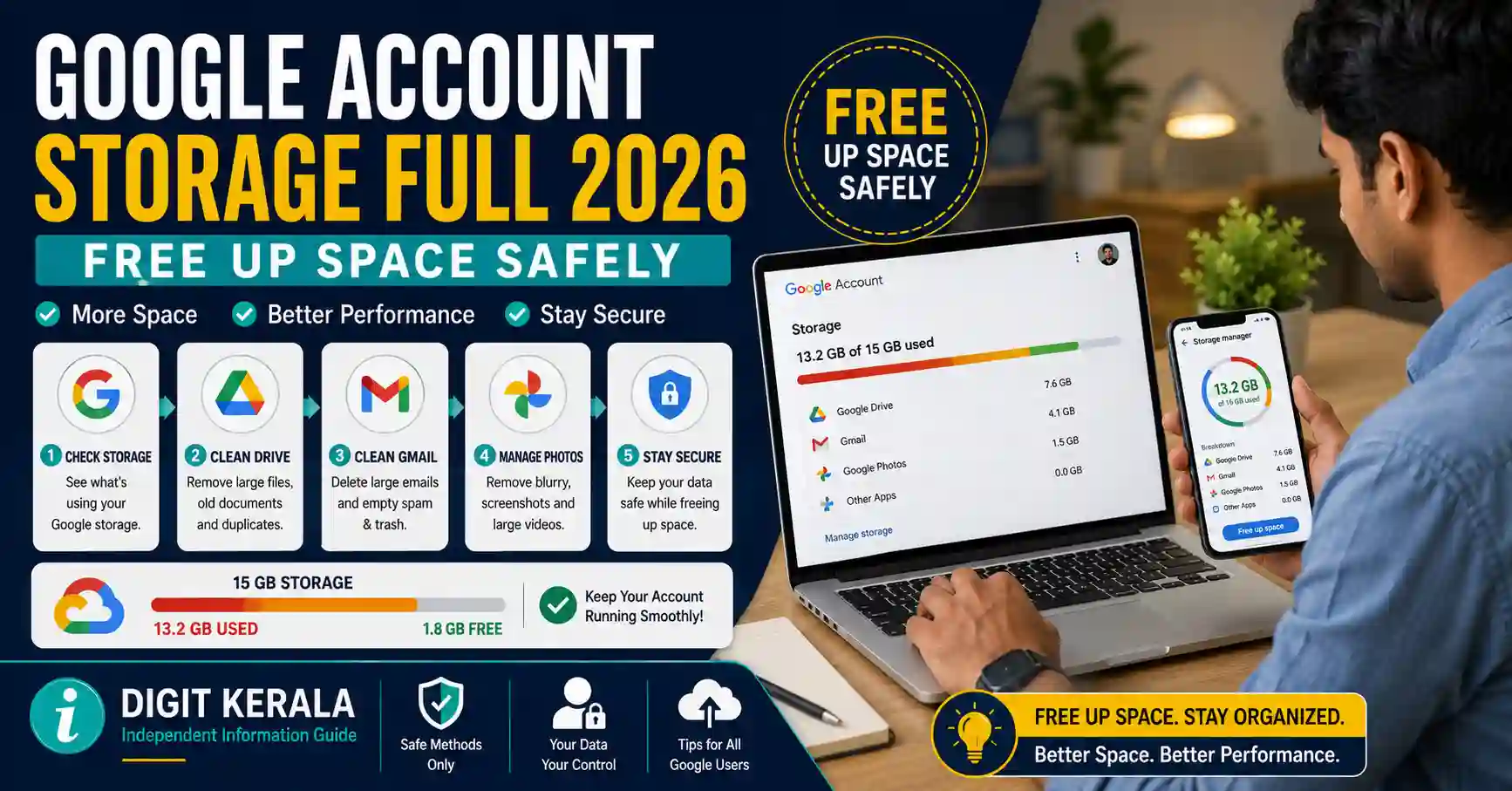
A Google Account storage full warning can affect Gmail, Google Drive, Google Photos and certain backups connected to the account.
When the available storage is exhausted, Gmail may stop sending or receiving messages, Google Drive may prevent new uploads or file creation, and Google Photos backup may stop.
This guide explains how to check Google Account storage, identify the services using the most space and safely remove unnecessary emails, files, photos, videos and backups.
Important: Permanently deleted content may not be recoverable. Review important files carefully and create a separate backup before emptying any trash or bin.
How Google Account Storage Works
According to Google Account Help, a personal Google Account generally includes up to 15 GB of storage.
This storage is shared across services such as:
- Gmail messages and attachments.
- Files stored in Google Drive.
- Google Photos backups that count towards storage.
- Google Docs, Sheets, Slides and other eligible files.
- Android device backups.
- Hidden data created by certain connected applications.
- WhatsApp backups on Android.
The exact storage allowance may differ for Google One subscribers, promotional accounts and accounts managed by a workplace, school or another organisation.
The storage available on a phone or computer is separate from Google Account cloud storage. Freeing space on the device does not automatically reduce the storage used by the Google Account.
What Happens When Google Storage Is Full?
When the account reaches its storage limit, some Google services may be restricted.
Gmail
The user may be unable to send or receive email. Messages sent to the account may be returned to the sender.
Important emails could therefore be missed while the account remains over its storage limit.
Google Drive
The account may be unable to:
- Upload new files.
- Sync new content.
- Create new Google Docs, Sheets or Slides.
- Back up new files.
- Edit or copy certain affected files.
Existing files can generally still be accessed while the account remains active, but service restrictions can continue until storage is reduced or increased.
Google Photos
New photos and videos may stop backing up to Google Photos.
Do not assume that recently captured photos are safely backed up when a storage-full warning is displayed. Check the backup status through the Google Photos application.
Long-Term Storage Policy
Google states that if an account remains over its storage quota for two years or longer, content in Gmail, Drive and Photos may be removed.
Google says eligible users will receive advance notice before content is deleted under this policy. Users should not rely on the notice as a substitute for regularly managing their storage and recovery email information.
How to Check Google Account Storage
Use the official Google One Storage page to see how the available space is being used.
The page can display separate usage amounts for:
- Google Drive.
- Gmail.
- Google Photos.
- Device or application backups.
- Other eligible storage categories.
Confirm that the correct Google Account is signed in before deleting anything. People using multiple Gmail accounts can accidentally manage the wrong account.
The Google One Storage Manager can also provide recommended categories of content to review.
Before Deleting Important Content
Storage cleanup can result in permanent data loss if it is performed without checking the selected items.
Before starting:
- Confirm that the correct Google Account is open.
- Check whether files are required for work, education, tax, legal or personal records.
- Download important attachments and documents.
- Store a separate copy on a trusted device or storage medium.
- Confirm that the downloaded files can be opened.
- Review files shared with other people before deleting them.
- Avoid emptying all trash folders until the remaining files have been checked.
Google provides Google Takeout for exporting a copy of selected account data.
The official Google Takeout instructions explain how to select Google services, create an export and choose a delivery method.
Google Takeout creates an export copy. It should not automatically be treated as a complete restore system for every Google service.
If a Takeout archive is added directly to Google Drive, the archive itself may use additional Google Account storage. Downloading the archive to a computer or external drive may be more suitable when the account is already full.
Use Google One Storage Manager
The Google One Storage Manager groups potentially removable content into categories.
Depending on the account, these may include:
- Emails with large attachments.
- Gmail trash and spam.
- Large Google Drive files.
- Drive trash.
- Large photos and videos.
- Unsupported videos.
- Blurry photos.
- Screenshots.
- Device and application backups.
The categories shown can vary by account and device.
Open each category and review individual items. Do not select everything solely because Google has placed the content in a cleanup category.
A large video or old email may still contain important personal or business information.
How to Free Gmail Storage
Gmail messages and their attachments use Google Account storage. Messages in the Spam and Trash folders also count until they are permanently removed.
Find Emails With Large Attachments
Open Gmail on a computer and enter the following search query:
has:attachment larger:10M
This searches for messages containing attachments larger than 10 MB.
Other useful searches include:
filename:.pdf larger:5M
This can find emails containing PDF attachments larger than 5 MB.
older_than:2y has:attachment
This can find emails with attachments that are older than two years.
Gmail supports additional operators through its official Gmail search guide.
Review both received and sent emails. Messages in the Sent folder can also contain large attachments.
Save an Attachment Before Deleting the Email
If an attachment is important:
- Open the email.
- Download the attachment to a trusted device.
- Open the downloaded file to confirm that it works.
- Check whether the email contains other important information.
- Delete the email only after verification.
Downloading an attachment does not remove it from Gmail. The email must still be deleted if the objective is to reduce cloud storage.
Empty Gmail Trash
Deleted emails remain in Trash temporarily and continue to use storage until they are permanently deleted.
To empty it:
- Open Gmail.
- Select More from the left menu when required.
- Open Trash.
- Review the deleted messages.
- Select Empty Trash now.
- Confirm the permanent deletion.
Once permanently deleted, messages may not be recoverable.
Empty the Spam Folder
Spam messages can contain large attachments and continue to count towards storage.
Open the Spam folder, review it for legitimate messages and use Delete all spam messages now when appropriate.
Check carefully because genuine messages can occasionally be placed in Spam.
How to Free Google Drive Storage
Google Drive may contain videos, archives, PDFs, backups and application data that use significant space.
Sort Drive Files by Size
On a computer:
- Open Google Drive.
- Select Storage from the left menu.
- Review the files listed from largest to smallest.
- Open or preview unfamiliar files.
- Download anything important.
- Move unnecessary files to Trash.
Removing a few large videos or archive files may recover more space than deleting hundreds of small documents.
Check File Ownership
Files owned by the user normally count towards that user’s storage.
Files in Shared with me generally use the original owner’s storage rather than the recipient’s storage. However, a copy created by the recipient or a file uploaded by the recipient can count against the recipient’s account.
Before deleting an owned file, check whether other people rely on it. Permanently deleting an owned shared file can cause other users to lose access.
When necessary, review whether ownership can be transferred to an eligible account before deletion.
Check Device Backups and Hidden App Data
The Google storage page may display an Other or Backups category.
This can include:
- Old Android device backups.
- Application backups.
- Hidden data created by connected applications.
- Other eligible system files.
Delete an old backup only after confirming that it is not required to restore a current or replacement device.
Hidden app data can be reviewed through Google Drive settings under Manage apps, when the option is available.
Disconnecting an application and deleting its hidden data are not always the same action. Read the displayed confirmation before proceeding.
Empty Google Drive Trash
Files moved to Drive Trash continue to use storage until they are permanently deleted.
To empty Drive Trash:
- Open Google Drive.
- Select Trash.
- Review the files carefully.
- Select Empty trash.
- Confirm permanent deletion.
Google explains the deletion process in its official Drive file-deletion guide.
How to Free Google Photos Storage
Photos and videos, especially long or high-resolution videos, can use a large portion of the account’s storage.
Open the official Google Photos storage-management page or select Storage within Google Photos.
Recommended cleanup categories may include:
- Large photos and videos.
- Blurry photos.
- Screenshots.
- Unsupported videos.
- Other suggested items.
Review every selected item before moving it to Trash.
Be Careful When Deleting Synced Photos
Deleting a photo or video through Google Photos can also remove it from devices where Google Photos backup or synchronisation is active.
Before deletion:
- Confirm that another copy exists.
- Check whether the local device copy is also required.
- Verify the backup account.
- Avoid deleting family, legal, medical or financial records without a separate backup.
According to the official Google Photos deletion guide, backed-up photos and videos generally remain in Trash for 60 days unless the Trash is emptied earlier.
Emptying the Photos Trash permanently deletes the selected content.
Storage Saver and Recover Storage
Google Photos provides a Storage saver backup-quality option.
Eligible photos and videos stored in Original quality may be converted to Storage saver through the Recover storage option.
Google states that:
- Storage recovery can generally be used once per day.
- It affects eligible existing photos and videos.
- Some files may not be eligible for compression.
- Changing existing items does not automatically set the quality for future uploads.
- Large photos or videos may be resized or compressed.
Read the official Google Photos backup-quality guide before converting an existing library.
Do not use Recover storage when the original image or video quality must be preserved unless a separate original-quality backup is available.
Check WhatsApp Backups on Android
WhatsApp backups on Android count towards Google Account storage.
Large videos included in WhatsApp backups can significantly increase the backup size.
Before deleting a WhatsApp backup:
- Open WhatsApp.
- Review the current chat-backup settings.
- Check the Google Account used for the backup.
- Confirm the date and size of the latest backup.
- Decide whether videos should continue to be included.
- Create any necessary independent copy of important conversations or media.
Deleting the Google Account copy of a WhatsApp backup can be permanent. It may prevent restoration after reinstalling WhatsApp or changing phones.
Google also warns that if the WhatsApp settings are not changed, a new backup may appear the next time WhatsApp performs an automatic backup.
Why Storage May Still Show as Full
Storage usage may not change immediately after content is deleted.
Possible reasons include:
- Gmail Trash has not been emptied.
- Gmail Spam still contains messages.
- Drive Trash has not been emptied.
- Google Photos Trash still contains media.
- A WhatsApp or device backup remains.
- Hidden application data is using storage.
- The deleted items did not count towards the quota.
- A different Google Account was cleaned.
- Google has not completed the storage recalculation.
Google advises allowing up to 48–72 hours for storage to update after deleting multiple files.
Avoid repeatedly deleting important content during this period solely because the storage indicator has not changed.
Sign out and sign back in, verify the correct account and check the official storage page again later.
Difference Between Device Storage and Google Storage
Phone storage and Google Account storage are separate.
Device Storage
This is the physical storage available on the phone, tablet or computer. Applications, downloads and offline files can use this space.
Google Account Storage
This is cloud storage used by eligible Gmail, Drive, Photos and backup content.
The Google Photos option called Free up space on this device can remove local copies of photos that have been backed up. It is intended to free device storage and does not necessarily reduce Google Account storage.
To reduce Google Account storage, eligible cloud content must be removed, compressed or covered by an increased storage plan.
Buying Additional Google Storage
If all stored content is required, the user can consider an official Google One storage plan where available.
Open the official Google One website while signed in to the correct account and review:
- Available storage amount.
- Current price and billing cycle.
- Renewal terms.
- Family-sharing conditions.
- Cancellation consequences.
- Payment method.
Prices and plan availability can vary by country and can change. This article does not recommend a particular paid plan and does not contain affiliate links.
If a paid plan expires or is cancelled, the account may return to its previous storage allowance and become over quota.
Work and School Google Accounts
Google Workspace accounts managed by a workplace, school or organisation may have different storage limits and cleanup options.
Some users may not be able to:
- Purchase individual Google One storage.
- Delete organisation-controlled files.
- Transfer ownership outside the organisation.
- Use all Google Takeout features.
- Change backup or storage policies.
Contact the responsible Workspace administrator when the storage limit is controlled by an organisation.
Storage Cleanup Safety Tips
Follow these precautions while cleaning the account:
- Use only official Google websites and applications.
- Confirm the signed-in email address before deleting files.
- Do not install unknown “Google storage cleaner” applications.
- Avoid services promising free unlimited Google storage.
- Never share the Google password or verification code.
- Download important content before permanent deletion.
- Check downloaded backups before emptying Trash.
- Review shared-file ownership.
- Do not delete device or WhatsApp backups without understanding the effect.
- Avoid giving an unknown application access to Gmail, Drive or Photos.
- Sign out after using a shared computer.
- Keep the account’s recovery email and mobile number current.
No third-party website can increase the official Google Account storage quota without an authorised Google plan or service.
Frequently Asked Questions
How much free storage does a Google Account provide?
A personal Google Account generally includes up to 15 GB shared across Gmail, Google Drive and Google Photos. Some accounts may have a different allowance.
Why did Gmail stop receiving emails?
If the shared Google Account storage is full, Gmail may stop sending and receiving messages. Emptying Trash and Spam and deleting unnecessary large messages can help restore space.
Do Gmail Trash and Spam use storage?
Yes. Messages in Gmail Trash and Spam count towards the storage quota until they are permanently deleted.
What is the quickest way to free Google storage?
Emptying verified Trash and Spam folders and deleting one or two unnecessary large emails, videos or Drive files can recover space quickly. Permanent deletion should be performed only after reviewing the content.
Do files shared with me use my Google Drive storage?
Files owned by another person generally use the original owner’s storage. Copies created or files uploaded and owned by the recipient can use the recipient’s storage.
Do WhatsApp backups use Google storage?
Yes. WhatsApp backups on Android count towards Google Account storage. Changing WhatsApp backup settings may be necessary to prevent the backup from growing again.
Will deleting photos from Google Photos delete them from my phone?
It can. Deleting through Google Photos may remove the same items from devices using backup or synchronisation. Create and verify a separate copy before deletion.
Why is storage still full after emptying Trash?
Google’s storage calculation may require time to update. The official guidance says that updates after large deletions can take up to 48–72 hours.
Can permanently deleted files be recovered with Google Takeout?
No. Google states that permanently deleted content cannot be recovered through Google Takeout. The export must be created before permanent deletion.
Can Google delete content if the account remains over quota?
Google states that content may be removed if an account remains over its storage quota for two years or longer. Eligible users should receive advance notice under the applicable policy.
Official References
- How Google Account Storage Works
- Manage Storage in Drive, Gmail and Photos
- Google One Storage Manager
- Google Takeout Instructions
- Google Photos Storage Management
- Google Photos Backup Quality
- Delete Files in Google Drive
- Gmail Search Operators
Last reviewed: August 30, 2026.
Disclaimer: DIGIT KERALA is an independent information website and is not affiliated with Google, Alphabet, Gmail, Google Drive, Google Photos, Google One, WhatsApp or any government organisation. This article provides general informational guidance only. Storage limits, service policies, menus and features may change. Permanently deleted content may not be recoverable. Always verify the current instructions through official Google support before deleting important data or purchasing a storage plan.