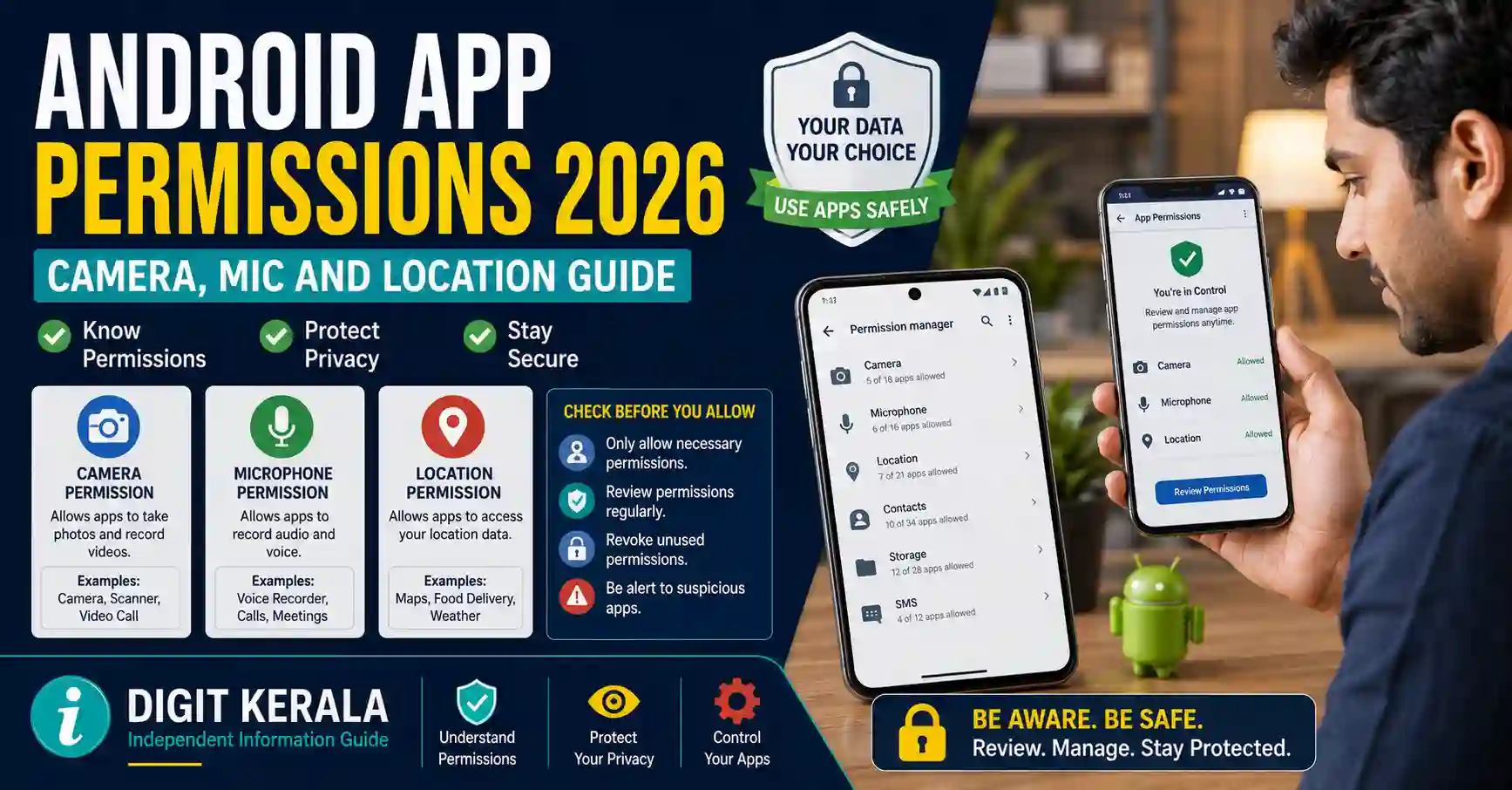
Applications installed on an Android phone may request access to the camera, microphone, location, contacts, photos and other information.
Some permissions are essential for an application’s main features. A navigation app, for example, requires location access to provide directions. However, an application should not automatically receive every permission it requests without the user reviewing why the access is necessary.
Android provides controls for checking permissions by application or permission type. Users can also review recent permission activity, disable camera or microphone access and automatically pause unused applications.
This guide explains how to safely manage Android app permissions without unnecessarily affecting important phone functions.
Important: Android settings and menu names can vary according to the phone manufacturer, Android version and organisation-management settings.
What Are Android App Permissions?
An app permission is an authorisation that allows an application to access a particular phone feature or category of information.
Depending on its purpose, an application may request permission to access:
- Camera.
- Microphone.
- Location.
- Contacts.
- Calendar.
- Call logs.
- Phone functions.
- SMS messages.
- Photos and videos.
- Music and audio.
- Files.
- Nearby devices.
- Physical activity.
- Notifications.
Granting permission does not automatically prove that an application is unsafe. The permission should, however, be relevant to the feature the user is trying to access.
For example:
- A video-calling app may require camera and microphone access.
- A map application may require location access.
- A document-scanning application may require camera access.
- A messaging application may request contacts access to find known users.
- A fitness application may request physical-activity access.
A simple calculator application requesting microphone, precise location and contacts access would require closer examination unless it provides a genuine feature that depends on those permissions.
Android Permission Options Explained
According to the official Android app-permission guide, the options available for sensitive permissions can include the following.
Allow All the Time
This option is mainly available for location access.
It permits an application to access location even when the application is not actively being used.
Background location may be required for features such as journey tracking, safety sharing or certain delivery services. It can also increase the amount of location information available to the application.
Grant this option only when the app’s main function genuinely requires continuous location access.
Allow Only While Using the App
The application can use the permission only while the user is actively using it.
For many camera, microphone and location requirements, this provides a practical balance between functionality and privacy.
Ask Every Time
Android asks the user to approve access whenever the application needs the permission.
The permission generally remains available only for the current use or session.
This option can be useful for an application that needs occasional access but does not require permanent permission.
Don’t Allow
The application cannot use the selected permission.
Some app features may stop working. However, other features that do not require the denied permission may continue to work normally.
How to Check Permissions for One App
To review the permissions granted to a specific application:
- Open the phone’s Settings application.
- Select Apps.
- Tap the relevant application.
- Select Permissions.
- Review the permissions listed as allowed and not allowed.
- Tap a permission to change its setting.
- Choose the most appropriate available option.
If the application is not displayed immediately, select See all apps or a similar option.
Another possible method is:
- Touch and hold the application icon.
- Select App info.
- Open Permissions.
- Review or change the available settings.
Menu wording may differ on Samsung, Xiaomi, Motorola, OnePlus and other Android devices.
Do not disable a permission solely because its name appears unfamiliar. Check the app’s main purpose and test whether the required function continues to work.
How to Check Permissions by Category
Android also provides a Permission Manager that groups applications by the type of permission they use.
The general steps are:
- Open Settings.
- Select Security and privacy or Privacy.
- Open Privacy when an additional privacy menu is displayed.
- Select Permission manager.
- Choose a permission category such as Camera, Microphone or Location.
- Review the applications with allowed or denied access.
- Select an application to change its permission.
This method is particularly useful for identifying every application with access to a sensitive feature.
For example, opening the Microphone category can show which applications are permitted to record audio.
Review Recent Access Through Privacy Dashboard
Android’s Privacy Dashboard can display which applications recently accessed selected phone permissions.
To open it:
- Open Settings.
- Select Security and privacy or Privacy.
- Tap Privacy dashboard.
- Select a permission category.
- Review the applications and access timeline displayed.
- Tap an application if its permission should be changed.
Google’s official Privacy Dashboard guide notes that feature availability and the displayed time period can depend on the Android version.
An app appearing in the Privacy Dashboard does not automatically mean that it is spying on the user. It shows that the app or service used the listed permission during the displayed period.
Compare the access time with the activity performed on the phone. For example, microphone access while making a voice call is expected. Microphone access by an unfamiliar app may require further investigation.
Check the Camera and Microphone Indicator
Supported Android devices display a green indicator near the top-right corner of the screen when an application is using the camera or microphone.
According to Android Help, users can generally:
- Notice the green indicator.
- Swipe down from the top of the screen.
- Tap the indicator.
- Check which application or service is using the camera or microphone.
- Tap again when an option to manage permission is available.
The indicator may appear briefly when a legitimate feature starts or finishes using the camera or microphone.
If it appears unexpectedly, note the application name and review its permissions through Settings.
Disable Camera or Microphone Access Temporarily
Supported Android versions provide device-level controls for blocking camera or microphone access.
The general steps are:
- Open Settings.
- Select Security and privacy.
- Open Privacy.
- Select Privacy controls.
- Turn off Camera access or Microphone access.
Some phones also provide Camera access and Microphone access buttons in Quick Settings.
Disabling these controls can prevent all applications from using the selected feature. Video calls, voice recording, QR-code scanning and other legitimate functions may not work until access is turned on again.
This setting can be useful as a temporary privacy control, but it does not replace reviewing individual applications.
Manage Location Permissions
Location permission can provide an application with approximate or precise information about the device’s position.
On supported Android versions:
- Open Settings.
- Select Location.
- Open App location permissions or App permissions.
- Select an application.
- Choose when the app may access location.
- Turn Use precise location on or off when the option is available.
Google’s location-permission instructions explain that the available choices may include:
- Allow all the time.
- Allow only while using the app.
- Ask every time.
- Don’t allow.
Approximate Location
Approximate location provides a broader estimate of the device’s position.
It may be sufficient for:
- Local news.
- General weather information.
- Regional content.
- Nearby city information.
- Applications that do not require an exact address.
Precise Location
Precise location can provide more exact position information.
It may be necessary for:
- Turn-by-turn navigation.
- Emergency location features.
- Live journey tracking.
- Location-based delivery.
- Ride-booking pickup points.
For Android 12 and later, users may be able to give an application approximate location while withholding precise location.
Choose precise access only when it is required for the feature being used.
Control Photo and Video Access
An application may request access to photos and videos for uploading, editing, sharing or backing up media.
Depending on the Android version, users may be able to allow:
- Access to all photos and videos.
- Access only to selected photos and videos.
- No access.
When an application needs only one profile picture or document image, selected-media access may be sufficient if the option is available.
Before providing full media-library access, consider:
- Whether the application needs to view every photo.
- Whether selected-photo access is available.
- Whether the developer and application are trusted.
- Whether the application has a clear privacy policy.
- Whether the same function can be completed through Android’s file picker.
Removing media permission can prevent automatic upload or backup features from working.
Review Contacts, Phone and SMS Permissions
Contacts, phone and SMS permissions can expose sensitive communication information or enable important device actions.
Contacts Permission
Contacts access may allow an application to find friends, display caller names or simplify sharing.
A photo editor, game or basic utility may not require access to the complete contact list.
Phone Permission
Phone permission can allow eligible applications to make or manage calls or access relevant phone information.
Dialler, communication and call-management applications may require it. Other applications should provide a clear reason before the permission is granted.
SMS Permission
SMS permission can allow an application to read, receive or send text messages, depending on the requested access and Android restrictions.
Users should be particularly cautious when an unfamiliar application requests SMS, notification, accessibility or screen-sharing access while discussing banking, investment, refunds or customer support.
Do not install an app or grant sensitive permissions simply because an unknown caller instructs you to do so.
Automatically Pause Unused Applications
Android can remove permissions or pause activity for applications that have not been used for a period of time.
To check the setting for an application:
- Open Settings.
- Select Apps.
- Choose the application.
- Find Unused app settings.
- Turn on Pause app activity if unused, when available.
Depending on the Android version, the setting may be called:
- Remove permissions if app isn’t used.
- Remove permissions and free up space.
- Pause app activity if unused.
Google Play Protect may also reset permissions for rarely used applications on supported Android versions.
A permission removed automatically can be granted again when the application is used.
Apps required for device management, accessibility, health monitoring or another important background function may need special consideration before being paused.
Check an App Before Installing It
Permission management should begin before an application is installed.
Confirm the Developer
Check:
- Developer name.
- Official website.
- Contact information.
- Application description.
- Recent update information.
- Number and quality of reviews.
- Whether the app is the official version of the expected service.
A familiar logo or application name alone does not confirm authenticity.
Review the Data Safety Section
Google Play listings include a Data safety section for eligible applications.
The section can provide information declared by the developer about:
- Types of data collected.
- Data shared with other organisations.
- Security practices.
- Data-deletion options.
- Whether some data collection is optional.
Google explains this feature in its official Data Safety guide.
The information is primarily provided by the application developer. Users should also review the app’s privacy policy and requested permissions.
Avoid Unofficial APK Files
Installing applications from unknown websites can increase security and privacy risks.
Modified or cracked applications may:
- Contain harmful code.
- Request unnecessary permissions.
- Display intrusive advertisements.
- Steal login or payment information.
- Avoid official security updates.
- Violate the original service’s terms.
Use the Google Play Store or another source officially recommended by the application developer or device manufacturer.
Scan Applications With Google Play Protect
Google Play Protect checks applications for potentially harmful behaviour.
To review it:
- Open the Google Play Store.
- Tap the profile icon.
- Select Play Protect.
- Review the latest scan information.
- Tap Scan if the option is available.
- Open Play Protect settings.
- Keep Scan apps with Play Protect enabled.
According to the official Google Play Protect guide, Play Protect can check installed applications, warn about potentially harmful apps and, in certain cases, disable or remove an identified harmful application.
Play Protect improves security but cannot guarantee that every installed application is safe. Users should still review permissions, updates, developer information and unexpected phone behaviour.
Android Permissions and Google Account Access Are Different
An Android application’s device permissions are different from access granted to Google Account data.
For example:
- Camera permission controls access to the phone’s camera.
- Contacts permission controls eligible device-contact access.
- Google Account access may allow an application to use data in services such as Google Drive or Google Calendar.
Removing a device permission does not necessarily remove a third-party application’s existing Google Account connection.
To review linked applications:
- Open the official Google Account connections page.
- Confirm the correct Google Account.
- Select an application or service.
- Review the access provided.
- Select Remove access when the connection is no longer required.
- Confirm the change.
Google notes that removing access can cause some application features to stop working. Information previously received and stored by the third-party developer may not automatically be deleted.
Never enter a Google Account password directly into an unfamiliar third-party application. Use the genuine Google sign-in screen and review the access request carefully.
What to Do If Permission Access Looks Suspicious
Unexpected permission access does not always confirm that the phone has been hacked. Begin with safe verification steps.
- Note the name of the application shown by Android.
- Check whether the app was actively being used.
- Review its permissions through Settings.
- Check recent access in Privacy Dashboard.
- Open its Google Play listing.
- Verify the developer and latest update.
- Review the Data safety section and privacy policy.
- Remove unnecessary permissions.
- Run a Google Play Protect scan.
- Uninstall an unrecognised or unnecessary application.
- Install available Android security and application updates.
If a financial, email or social-media account may have been accessed, change its password using a trusted device and review its active sessions.
Contact the relevant bank or service provider through an officially verified number if unauthorised financial activity is suspected.
Do not pay an online stranger who claims to detect or remove spyware remotely.
Permissions That Should Be Reviewed Regularly
Pay particular attention to applications with access to:
- Accessibility services.
- Device administration.
- Camera.
- Microphone.
- Precise or background location.
- Contacts.
- SMS.
- Phone calls.
- Notifications.
- Photos and videos.
- Display over other apps.
- Installation of unknown applications.
- Screen capture or screen sharing.
Some legitimate applications require these capabilities. The aim is not to disable every permission, but to ensure that access is limited to applications that genuinely need it.
Common Permission Problems
Camera Does Not Work in an App
Check whether Camera permission is allowed for the application. Also confirm that the device-level Camera access control is turned on.
Close and reopen the application after changing the permission.
Microphone Does Not Work During Calls
Review Microphone permission for the calling application and confirm that the device-level Microphone access control is enabled.
Also check whether another application is actively using the microphone.
App Cannot Detect the Current Location
Check:
- Device location is turned on.
- The app has location permission.
- Precise location is enabled when required.
- Mobile data or Wi-Fi is available.
- Battery-saving settings are not restricting the app.
- The correct location mode is selected.
Permission Option Is Not Available
The option may depend on:
- Android version.
- Phone manufacturer.
- Application target version.
- Work-profile policy.
- Parental controls.
- Device-administrator restrictions.
Check the phone manufacturer’s official support instructions when the standard Android path is unavailable.
App Keeps Requesting a Denied Permission
The feature being used may depend on that permission. Deny it again if the feature is unnecessary.
If the request is unrelated to the app’s purpose or prevents basic use without a valid explanation, consider using a more privacy-conscious alternative.
Privacy and Security Checklist
Use the following checklist periodically:
- Remove applications no longer used.
- Review Camera, Microphone and Location permissions.
- Limit background and precise location access.
- Use selected-photo access when sufficient.
- Turn on permission removal for unused applications.
- Keep Google Play Protect enabled.
- Install Android security updates.
- Review Google Account third-party connections.
- Avoid unknown APK and modified applications.
- Do not grant permissions during unsolicited support calls.
- Read permission prompts before selecting Allow.
- Keep a secure screen lock enabled.
- Use unique passwords and two-step verification for important accounts.
Frequently Asked Questions
How can I see which Android apps use my camera?
Open Settings, select Privacy or Security and privacy, and check Permission Manager under Camera. Supported Android devices also display a green indicator when the camera is active.
How can I find which app is using the microphone?
When the green camera or microphone indicator appears, swipe down and tap it. Android may display the application or service currently using the microphone.
Should I deny every app permission?
No. Some applications need permissions for their main features. Grant only the access that is relevant and use options such as Allow only while using the app or Ask every time when appropriate.
Can an app access location when it is closed?
An app with Allow all the time location permission may be able to access location in the background. Change it to while-in-use, ask-every-time or don’t-allow if continuous location access is unnecessary.
What is the difference between precise and approximate location?
Precise location provides more exact position information. Approximate location provides a broader area and may be sufficient for weather, news and other regional services.
Does uninstalling an app remove its permissions?
Uninstalling removes the application and its device permissions. However, data previously shared with the developer or access connected separately through a Google Account may require additional review.
Is the green camera or microphone indicator a hacking warning?
Not necessarily. It indicates that an application or system service is using the camera or microphone. Tap the indicator and check whether the access matches what was happening on the phone.
Can Play Protect guarantee that every app is safe?
No security feature can provide a complete guarantee. Google Play Protect scans for potentially harmful applications, but users should also verify developers, updates, permissions and privacy information.
Why were an unused app’s permissions removed?
Android or Google Play Protect may automatically remove permissions from applications that have not been used for a period of time. The permission can be granted again when required.
Are app permissions the same on every Android phone?
No. Available options and menu names can differ by Android version, manufacturer and device-management policy.
Official References
- Android App Permission Guide
- Android Privacy Dashboard
- Camera and Microphone Indicators
- Manage Location Permissions
- Google Play Protect
- Google Play Data Safety Information
- Manage Google Account App Connections
- Official Android Help Centre
Last reviewed: August 30, 2026.
Disclaimer: DIGIT KERALA is an independent information website and is not affiliated with Google, Android, Google Play, any phone manufacturer, application developer or government organisation. This article provides general information only. Android features, permission names and menu locations can vary by device, operating-system version and manufacturer. Review current instructions through official Android or device-manufacturer support before changing permissions required for safety, accessibility, work or emergency functions.